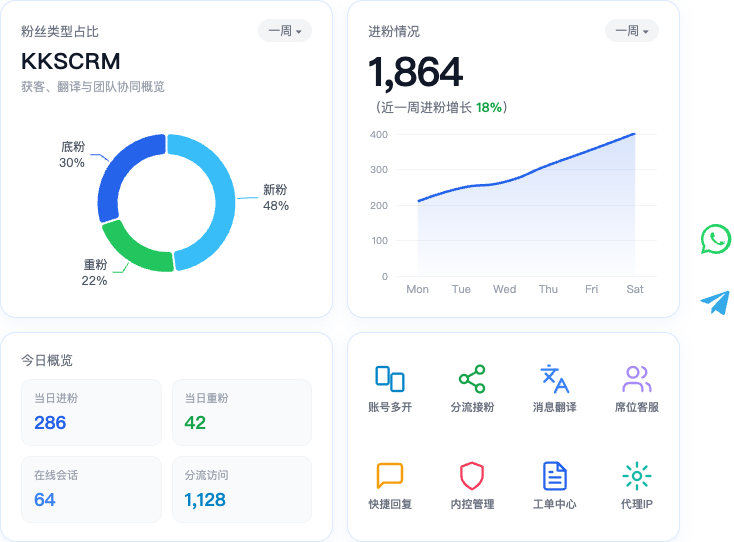
Platform tickets
Platform tickets (menu: Ticket center) track new fans, returning fans, and goal progress by activation-code seat and platform (WhatsApp / Telegram), so managers can verify traffic and staff output.
Core concepts
| Term | Description |
|---|---|
| Ticket | Fan-intake stats unit for one activation code on one platform |
| Total goal | Expected fan count for the ticket (example: 500) |
| New fans | New fans counted into stats |
| Returning fans | Returning-fan related stats (as shown in ticket detail) |
| Zero / reset | Clear today’s fan counts by rule for daily settlement |
Typical scenarios
- Traffic / ad buyers reconcile daily fan counts
- Supervisors check online marketing accounts and output per seat
- Share read-only ticket data externally (current sharing focuses on WhatsApp tickets)
UI preview
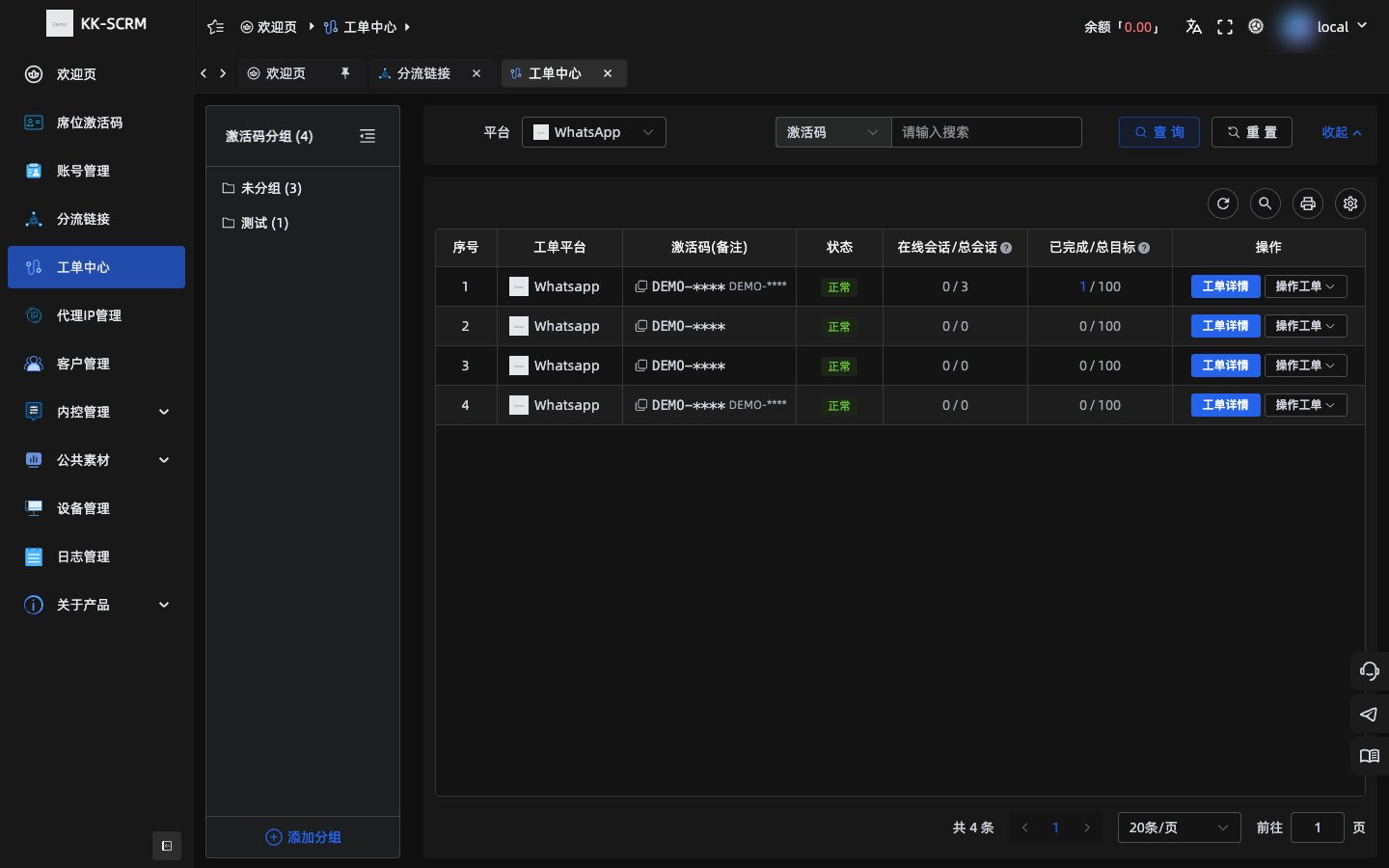
View the ticket list
- Sign in to the console and open Ticket center.
- Switch the WhatsApp or Telegram platform tab.
- The list is usually grouped by activation code, showing online/total sessions, completed/total goal, zeroing time, today’s fans, and more.
mermaid
flowchart TD
  list[Ticket center list] --> detail[Ticket detail]
  list --> setGoal[Set total goal]
  list --> share[Share ticket]
  list --> reset[Reset rules or reset now]
  detail --> fans[View fans and logs]
  detail --> export[Export data]
Set a ticket goal
- Open the action menu on the ticket row → Set ticket goal.
- Enter a non-negative integer total goal (example:
500) and save. - “Completed / total goal” in the list reflects the latest setting.
Ticket detail
- Click the ticket for an activation code to open detail.
- Review fan intake, online/busy status for each marketing account under the seat.
- Common actions: export, fan drawer, account logs, force offline when needed.
Masking tip
Before external screenshots or sharing, mask marketing-account avatars, nicknames, phone numbers, platform IDs, and other sensitive fields. Docs use “Demo account” as the example label.
Share a ticket
For read-only progress with external teammates (availability follows the product; currently focused on WhatsApp):
- Enable sharing and set an access password (leave empty to let the system generate one, example:
384291). - Copy the public link and send it.
- Visitors open the link, enter the password, and view ticket data.
- To invalidate an old link, regenerate the share code.
Reset a ticket
| Method | Behavior |
|---|---|
| Follow activation-code zeroing time | Auto-handle at the seat’s daily zeroing time |
| Custom daily reset time | Set a reset time for this ticket only |
| Reset now | Immediately clear today’s fan counts; returning fans recalculate by rule |
Confirm settlement rules with collaborators before operating, to avoid double resets.
How it relates to other modules
- Depends on Seat activation codes and online marketing accounts on desktop.
- Fan intake via dispatch can work with Dispatch links.
- Customer details can also be followed in Customer management.
Troubleshooting checklist
| Symptom | Check |
|---|---|
| Empty list | Is the activation code enabled, is the desktop session logged in, is the platform correct |
| Fans not increasing | Is the session online, did dispatch hit an available account, was it just reset |
| Share link fails | Is sharing on, is the password correct, was the share code regenerated |