Glossary
Use this page to understand common KKSCRM concepts. Start with new / returning / base fans, ports, activation codes, and platform tickets.
New fans (新粉)
Fans that the system treats as first-time additions under a marketing account. They are usually counted toward daily / total new-fan intake metrics.
- ✅ Labeled as “new fans” in fan type fields; a main source of ticket-center metrics such as “new fans today / total new fans”.
- ✅ If a contact appears for the first time only on the current marketing account, it is typically recorded as a new fan. Exact timing follows sync and ticket rules.
- ✅ Where to check: desktop fan lists, console Customers, and fan lists inside Ticket center details.
Returning fans (重粉)
Fans that appear as new on one marketing account, but already exist under another marketing account you own. The system deduplicates by account to avoid counting the same person as brand-new on every number.
- ✅ Labeled as “returning fans”; tickets often show “returning fans today / total returning fans”.
- ✅ Example: a customer first adds account A, then adds account B — account B records a returning fan and may note which account already had them.
- ✅ Returning fans are not “invalid”: you can still follow up, but performance stats usually separate them from new fans to avoid double counting.
Base fans (底粉)
Existing contacts already on the marketing account when it logs in / syncs, not fans acquired during the current campaign window.
- ✅ Labeled as “base fans”, commonly written during online sync.
- ✅ Helps separate “people the account already had” from “fans acquired later”, so acquisition results stay clear.
- ✅ During sync, contacts that are actually existing address-book entries may be corrected from new fan to base fan (depending on sync results).
How to read the three types together
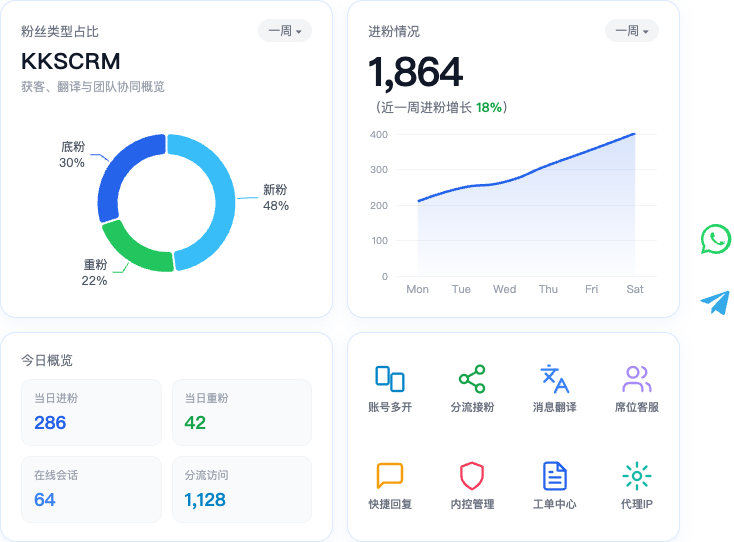
Base = pre-existing contacts; New = first-time on this account; Returning = new on this account but already on another of your accounts. Intake charts usually focus on new fans, with returning fans used to spot duplicate adds.
Ports
Ports are session capacity under your plan / seat: each online marketing-account session typically occupies port quota — “how many accounts you can run at once”.
- ✅ Total ports: overall quota from plan / seat settings.
- ✅ Used ports: currently online sessions occupying capacity.
- ✅ Remaining ports: room left to bring more sessions online; when remaining is insufficient, new sessions may fail to start.
- ✅ Closely tied to activation codes and desktop multi-session; expand by upgrading the plan or raising seat port limits.
Activation codes (seats)
An activation code is the credential staff use to sign in to the desktop client (usually 12 alphanumeric characters). It maps to a seat with ports, permissions, and ticket ownership.
- ✅ Admins create, enable, or disable codes under Activation codes in the console; disabled codes cannot sign in to desktop.
- ✅ Desktop login uses the activation code, not the console email/password.
- ✅ Ticket center usually groups intake stats by activation code; diversion and proxy assignment often target seats as well.
- ✅ If a code is lost, ask an admin for the code generated in the console.
See Activation codes.
Platform tickets
Platform tickets (often Ticket center) track new fans, returning fans, and goal progress by platform (WhatsApp / Telegram) and activation-code seat, so managers can reconcile traffic and staff output.
- ✅ Lists show online/total sessions, completed/total goal, zeroing time, today’s new/returning fans, and more.
- ✅ You can set goals, open details per marketing account, export data; WhatsApp tickets may support a read-only share page.
- ✅ Reset rules (follow seat zeroing time, custom daily reset, or reset now) affect today’s counts — confirm settlement rules before resetting.
- ✅ Ticket data depends on online desktop sessions and fan sync; combined with diversion links, you get a full “campaign → intake → reconcile” loop.
See Platform tickets.
Console
The web admin for signup, plans, activation codes, diversion links, tickets, customers, proxy IPs, marketing replies, and internal control.
- ✅ Built for admins and supervisors; day-to-day chat runs in the desktop client.
- ✅ Entry: https://app.kkscrm.com
Desktop client
The installed workspace where seats log in with an activation code, run WhatsApp / Telegram multi-session, and use translation, proxies, and quick replies.
- ✅ Handles QR/login, messaging, and fan sync to the console.
- ✅ See Download & install.
Marketing accounts
Social accounts reported to the console after a successful desktop login (e.g. a WhatsApp or Telegram number). Tickets, diversion, and customers all center on marketing accounts.
- ✅ One seat can hold multiple marketing accounts (limited by ports).
- ✅ When sharing screenshots, mask nicknames, avatars, phone numbers, and platform IDs.
Sessions
A single marketing account’s workspace in the desktop client — start, restart, disconnect, or delete. Online status affects whether “online-only” diversion can assign that account.
Diversion links
Outbound short links that route visitors to marketing accounts by online status and sequential / random / serial rules.
- ✅ Supports country/device filters and access logs for a trackable intake loop.
- ✅ See Diversion links.
Short-link domain
The domain used for diversion redirects, e.g. kktuc.top. Chosen when creating a diversion link.
Proxy IP
Network egress for desktop sessions. Manage and assign proxies in the console, then select them per session on desktop.
- ✅ See Proxy IP.
Translation routes
Channels used for two-way chat translation (AI, Google, DeepL, etc.). Availability and quota depend on the active plan.
Sensitive words / sensitive actions
Internal-control features that monitor risky words and actions (such as deleting messages), with records and optional blocking — typically Pro-related.
For step-by-step guides, see Features and Quick start.